
Choose your compute network
Selecting the right DePIN project starts with matching your hardware to the network’s requirements. Not all decentralized compute networks support the same GPUs, and reward structures vary significantly based on GPU capability and current network demand. You need to verify compatibility and expected earnings before committing hardware.
Render Network remains the largest player for GPU rendering tasks, requiring node operators to register idle GPUs. GPU.net offers a broader range of compute tasks beyond rendering, often with different software requirements. The choice depends on whether you prioritize stable rendering jobs or diverse compute workloads.
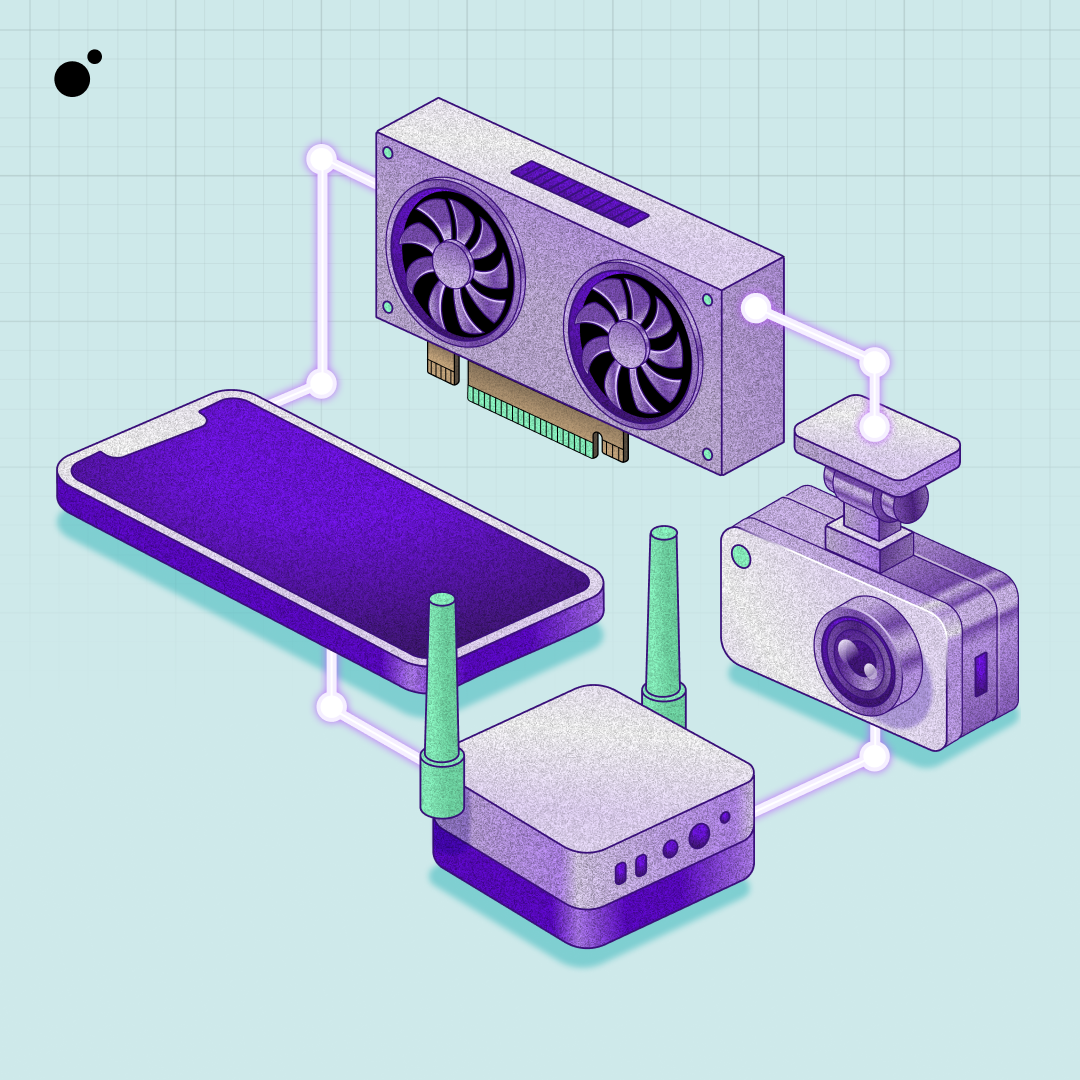
The table below compares three leading networks. Focus on VRAM minimums, as this is the primary bottleneck for most consumer GPUs. Also consider the token’s current stability and the network’s active node count to gauge reward reliability.
| Network | Min VRAM | Primary Use | Reward Token |
|---|---|---|---|
| Render Network | 8GB | 3D Rendering & AI | RENDER |
| GPU.net | 4GB | General Compute | GPU |
| io.net | 8GB | AI Training & Rendering | IO |
Prepare bare-metal hardware
DePIN mining relies on hardware attestation to prove that compute power is being generated by physical devices. Most projects, including Render, Akash, and io.net, require a direct connection to the GPU without virtualization layers. Running your node on a virtual machine (VM) or cloud instance will cause attestation to fail, resulting in zero rewards.
You must install the operating system directly on the bare-metal server. This ensures the node can access the GPU drivers and hardware sensors required for proof-of-work verification.
1. Select compatible bare-metal hardware
Choose a server with dedicated GPUs that match the network's requirements. Consumer-grade GPUs (like NVIDIA RTX series) are often sufficient for rendering or AI inference tasks, while data center GPUs (like NVIDIA A100 or H100) may be needed for high-performance training workloads. Verify that the GPU architecture is supported by the specific DePIN project you plan to join.
2. Install a supported operating system
Install a Linux distribution such as Ubuntu 22.04 LTS or 24.04 LTS. These are the most widely supported OSes for DePIN node software. Avoid Windows or macOS for production nodes, as driver compatibility and automation scripts are primarily optimized for Linux. Ensure you have administrative (root) access to configure the system correctly.
3. Configure GPU drivers and container runtime
Install the latest proprietary NVIDIA drivers and the CUDA toolkit. DePIN nodes typically run inside Docker containers, so install Docker Engine and the NVIDIA Container Toolkit. This allows the containers to access the GPU hardware directly. Verify the installation by running nvidia-smi to ensure the system recognizes the GPU.
4. Set up secure network access
Configure your firewall to allow only the necessary ports for the DePIN project's node software. Disable SSH password authentication and use SSH keys instead. Ensure your server has a static IP address or a reliable dynamic DNS setup, as the network needs to consistently identify your node.
5. Verify bare-metal status
Before launching the node software, confirm that you are not running in a virtualized environment. Some DePIN projects include pre-flight checks that detect hypervisors. If you are using a cloud provider, ensure you have selected a "bare-metal" instance type, not a standard VM. Running on virtualized infrastructure will lead to immediate rejection by the network's attestation system.
Install mining software and nodes
DePIN GPU mining requires running specific node software that connects your hardware to the decentralized network. Unlike traditional proof-of-work mining that relies on hashing power, DePIN node operators provide compute resources—such as GPU rendering or data processing—to the network. The installation process varies slightly depending on the protocol, but the core workflow remains consistent: download the client, configure your GPU, and verify the connection.
The following steps outline the standard procedure for setting up a DePIN node. These instructions are based on general requirements for major networks like Render and GPU.net, which serve as primary examples of decentralized compute infrastructure.
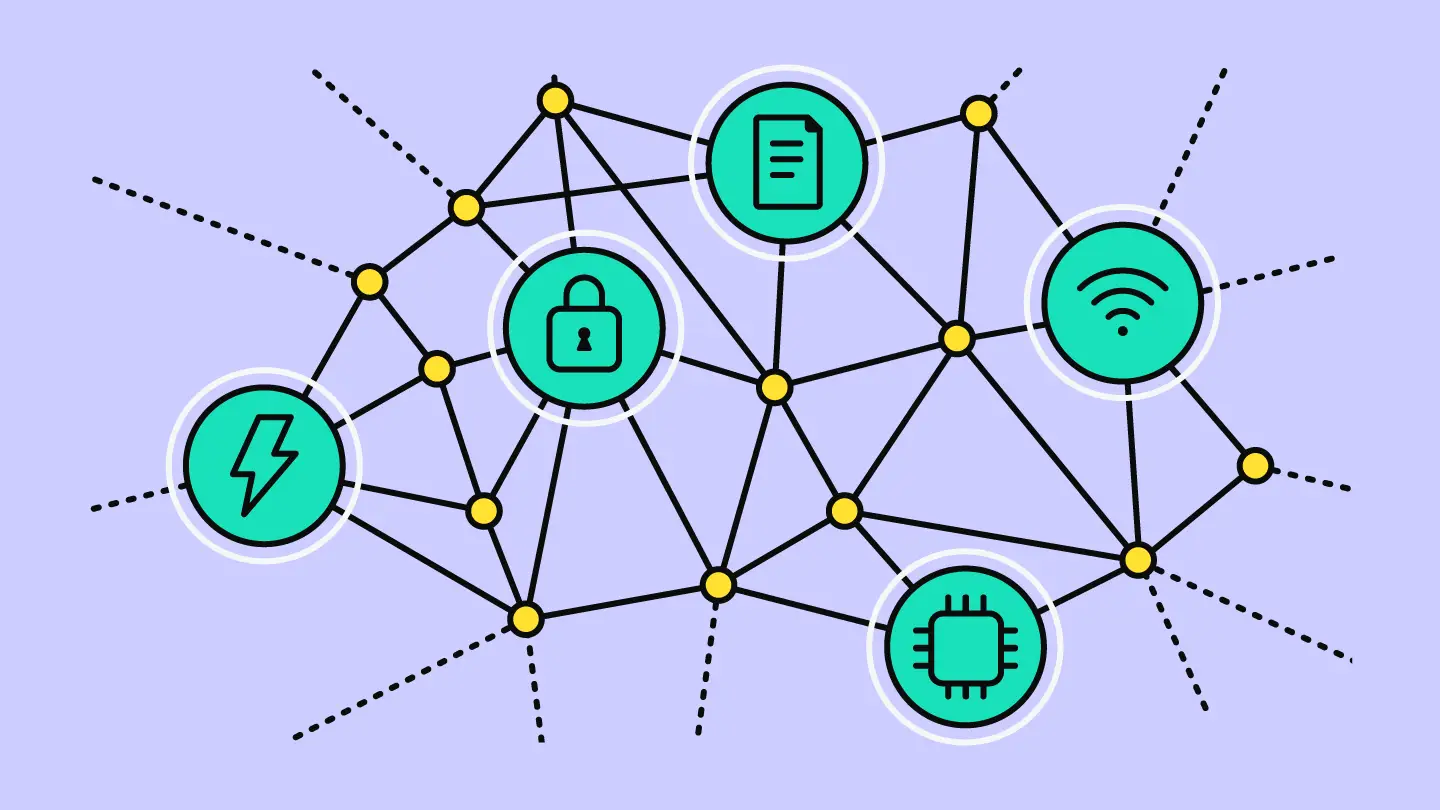
Begin by identifying the specific DePIN project you wish to join, such as Render Network or GPU.net. Visit the official project website or their verified GitHub repository to download the latest node client. Avoid third-party download links, as unofficial binaries may contain malware or misconfigured settings that prevent reward accrual. Ensure you select the version compatible with your operating system (Windows, Linux, or macOS) and GPU architecture (NVIDIA CUDA or AMD ROCm).
Most DePIN nodes require specific system libraries to communicate with your GPU. For NVIDIA users, install the latest proprietary drivers and the CUDA toolkit. For AMD users, ensure ROCm is correctly configured. Verify that your GPU is recognized by the system by running a diagnostic command (e.g., nvidia-smi on Linux/Windows). If the node client cannot detect your GPU, it will fail to allocate compute tasks, resulting in zero rewards.
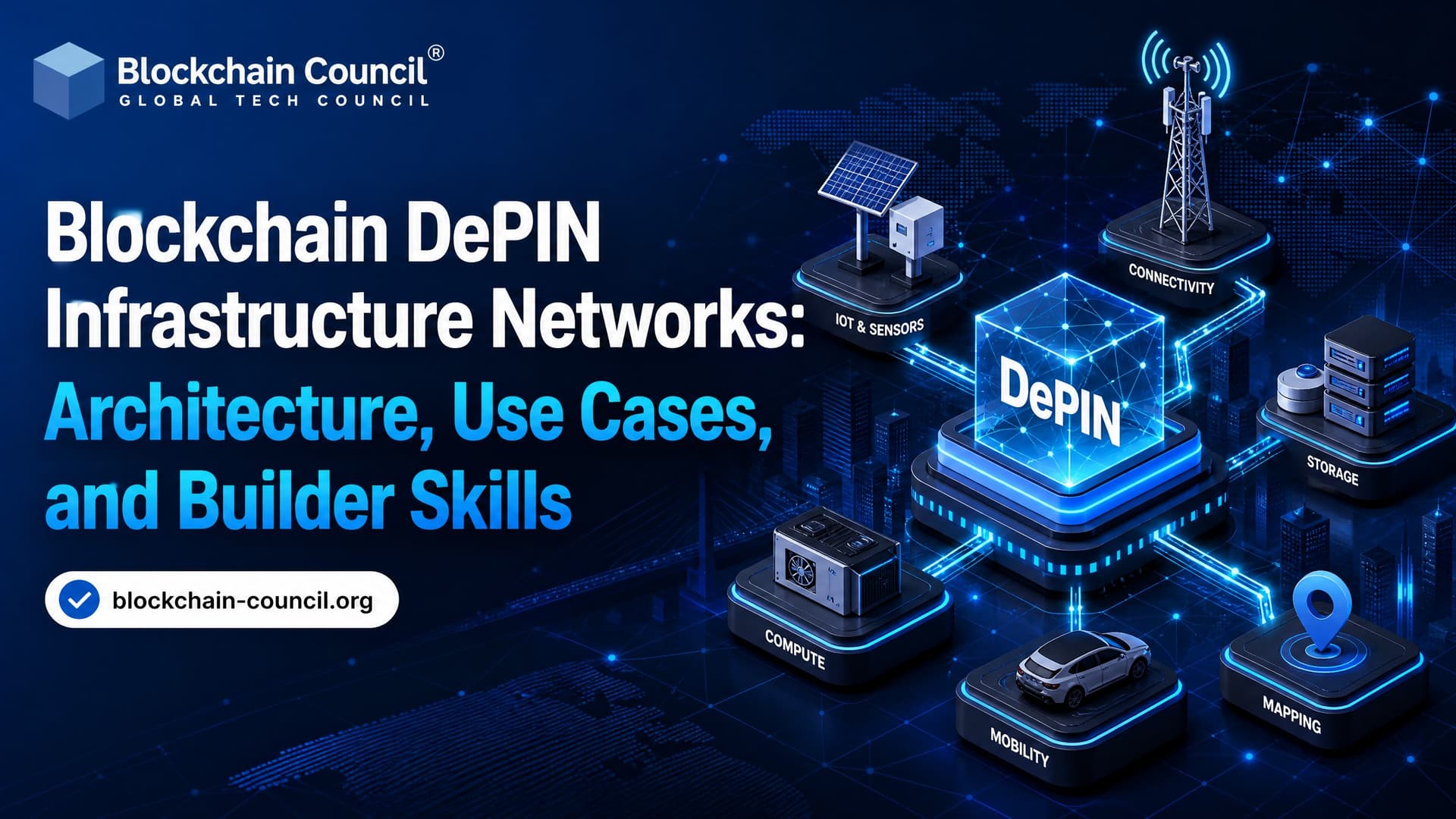
Create or import a compatible cryptocurrency wallet to receive rewards. Most DePIN networks use specific blockchains (e.g., Solana for Render, or their own native chains). Generate a private key or seed phrase and save it securely; you will need to input this into the node configuration file. Configure the network settings to point to the correct mainnet or testnet. Using the wrong network will disconnect your node from the reward pool.
Start the node client using the provided command-line interface or desktop application. Monitor the logs for connection errors or GPU allocation failures. Once connected, your node should appear in the network’s explorer as an active operator. You can verify this by checking your wallet balance or the project’s official dashboard. It may take several hours for the network to assign your first compute task.
Monitor uptime and rewards
Your node earns DePIN compute rewards only when it maintains a stable connection to the network and passes periodic verification checks. Think of your node as a digital storefront: if the lights are off or the door is locked, customers (and the network) can’t find you. Consistent uptime is the baseline requirement for earning, but verifying that the network actually recognizes your contribution is the final step.
Verify Node Status
Log into your DePIN provider’s dashboard or CLI interface to confirm the node is reporting as "Active" or "Online." Check the uptime percentage over the last 24–48 hours. Most networks require at least 95% uptime to qualify for reward distribution.
Look for specific health metrics:
- GPU Temperature: Ensure thermal throttling isn’t causing intermittent disconnects.
- Network Latency: High ping or packet loss can trigger false disconnections.
- Sync Status: Confirm your node is fully synced with the latest network state.
If the dashboard shows "Offline" or "Disconnected," check your local internet connection and router settings. Restart the node service if necessary.
Check Reward Accumulation
Rewards are typically calculated based on verified compute units or data contributions. Navigate to the "Rewards" or "Earnings" section of your dashboard to see:
- Pending Rewards: Compute completed but not yet finalized on-chain.
- Claimable Rewards: Amounts ready to be withdrawn or staked.
- Historical Payouts: Past transactions for verification.
Use a block explorer like DePINScan to cross-reference your wallet address with on-chain records. This ensures your rewards are being recorded correctly by the network protocol.
Troubleshoot Common Issues
If your node drops offline frequently:
- Check Power Supply: Ensure stable voltage to prevent GPU shutdowns.
- Update Drivers: Outdated GPU drivers can cause compatibility issues with mining software.
- Firewall Settings: Verify that required ports are open for inbound and outbound traffic.
- Cooling: Overheating is a common cause of automatic node shutdowns.
Regular monitoring prevents small issues from becoming missed reward opportunities.
Verify your setup
Before expecting DePIN GPU mining rewards, run through this verification checklist. Missing a single configuration step—like driver versions or network ports—can cause attestation failures or silent downtime.
-
GPU drivers updated to the latest stable release
-
GPU-Z or nvidia-smi confirms full memory and compute availability
-
Firewall allows inbound/outbound traffic on required ports (e.g., 3439 for Render)
-
Node operator wallet is connected and funded with minimal gas
-
No virtualization software (VMs, Docker) is interfering with bare-metal access
DePIN compute networks like Render and Akash require direct hardware access. Virtualized GPUs often fail attestation checks, leading to zero rewards despite active mining software. Verify your environment is bare-metal.

Common depin mining: what to check next
Before deploying hardware, clarify how the network operates and what to expect from your investment. DePIN mining differs from traditional proof-of-work crypto mining by renting out physical resources like GPU compute power to decentralized networks rather than solely solving cryptographic puzzles.
No comments yet. Be the first to share your thoughts!